
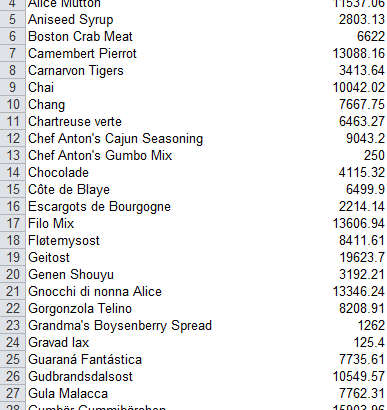
In this tip, we want to take this opportunity to address a very important issue faced by many people that use Microsoft® Excel®. Sometimes when working with PivotTables, the Count function is set as the default instead of the Sum function. This can be frustrating as you then have to set each column value to […]

- Solutions
All Solutions
- Standalone Reporting Tool
- Sage Intelligence for Accounting
- Sage 300cloud Intelligence
- Sage 50cloud Pastel Intelligence Reporting
- Sage Pastel Payroll Intelligence Reporting
- Sage 100/200 Evolution Intelligence Reporting
- Sage 100 Intelligence Reporting
- Sage 300 Intelligence Reporting
- Sage 500 Intelligence Reporting
- Sage VIP Intelligence Reporting
- Resources
All Solutions
- Standalone Reporting Tool
- Sage Intelligence for Accounting
- Sage 300cloud Intelligence
- Sage 50cloud Pastel Intelligence Reporting
- Sage Pastel Payroll Intelligence Reporting
- Sage 100/200 Evolution Intelligence Reporting
- Sage 100 Intelligence Reporting
- Sage 300 Intelligence Reporting
- Sage 500 Intelligence Reporting
- Sage VIP Intelligence Reporting
Additional Reports
Download our latest Report Utility tool, giving you the ability to access a library of continually updated reports. You don’t need to waste time manually importing new reports, they are automatically imported into the Report Manager module for you to start using.Sage Intelligence Tips & Tricks
Our Sage Intelligence Tips and Tricks will help you make the most of your favorite reporting solution.Excel Tips & Tricks
Our Excel Tips and Tricks will help you improve your business reporting knowledge and skills.- Learning
- Support
All Solutions
- Standalone Reporting Tool
- Sage Intelligence for Accounting
- Sage 300cloud Intelligence
- Sage 50cloud Pastel Intelligence Reporting
- Sage Pastel Payroll Intelligence Reporting
- Sage 100/200 Evolution Intelligence Reporting
- Sage 100 Intelligence Reporting
- Sage 300 Intelligence Reporting
- Sage 500 Intelligence Reporting
- Sage VIP Intelligence Reporting
Additional Reports
Download our latest Report Utility tool, giving you the ability to access a library of continually updated reports. You don’t need to waste time manually importing new reports, they are automatically imported into the Report Manager module for you to start using.Sage Intelligence Tips & Tricks
Our Sage Intelligence Tips and Tricks will help you make the most of your favorite reporting solution.Excel Tips & Tricks
Our Excel Tips and Tricks will help you improve your business reporting knowledge and skills.Get Support Assistance
Can’t find the solution to the challenge you’re facing in the resource library? No problem! Our highly-trained support team are here to help you out.Knowledgebase
Did you know that you also have access to the same knowledgebase articles our colleagues use here at Sage Intelligence? Available 24/7, the Sage Intelligence Knowledgebase gives you access to articles written and updated by Sage support analysts.Report Writers
Having some trouble creating or customizing the exact report you need to suit your business’s requirements? Contact one of the expert report writers recommended by Sage Intelligence.- Sage City
- University
- About Us
- Contact Us
Home Tips & Tricks Excel Tips & Tricks Page 16
Tips & Tricks
How to set up custom subtotals in a PivotTable
PivotTables are a very useful tool for business reporting especially when you have a lot of data to report on, that’s why they are our topic of focus lately. PivotTables help you quickly summarize, analyze, explore, and present large volumes of data. Did you know that you can summarize or analyze your data with more […]
Set up a PivotTable using the PowerPivot add-on module
Last week we showed you how to install the PowerPivot add-on module in Microsoft Excel 2010 and 2013, and how you can use it to process immense volumes of data that cannot be efficiently handled by PivotTables. Today, we want to show you how to set up a PivotTable using PowerPivot to enable you to […]
How to Install Power Pivots for Microsoft® Excel®
In the past two weeks we have shared tips on Pivot Tables and this week we continue on how to install the Power Pivots add-on module. Power Pivot is an Excel add-on that is available for free in Excel 2010 and 2013. Power Pivots enables you to process immense volumes of data that cannot be efficiently handled […]
How to create custom PivotTable Groups
The PivotTable grouping option in Microsoft® Excel® allows you to see summaries of data by grouping it together so that less detail is shown. Grouping can be done automatically on date fields and the data summarised by days, months, quarters or years. However, you can also create your own custom groups. For instance, you can […]
How to rank items quickly without sorting them
This week we’ll show you how to quickly rank items from smallest to largest using a feature that already exists in PivotTables. Let’s say you’re analyzing your products or even expenses and need to rank them from the smallest to the largest value, instead of writing your own formulas in calculated fields, you can use […]
How to sort your data using a customized list
If you would like to sort your data differently, and not in ascending or descending order using the Sort feature in Microsoft® Excel®, you can customize it! The Custom Lists feature allows you to define your own order. For example, if a Sales Manager wants to sort product categories in a specific order instead of […]
Calculating the age of an employee
Last week I was presenting a workshop on the date and time functions in Microsoft® Excel®. One of the delegates, a Human Resource professional, asked me how they can calculate the age of an employee in Excel. I suggested they use the DATEDIF or the DAYS360 functions. For the sake of other HR professionals who […]
Enjoy greater flexibility in filtering dates with Timelines in Microsoft® Excel® 2013
To make it easier for you to drill down on data, Microsoft has provided a more flexible way of filtering PivotTables by dates in Microsoft® Excel® 2013 with the addition of Timelines. Timelines are a visual filter for dates, which make it easy for you to see what date range has been filtered, plus they […]
How to prevent edits to the final version of a workbook
If you want to share the final version of a workbook and ensure that changes aren’t made to it, you can use the Mark as Final command. This command communicates that you are sharing a completed version of the workbook and helps prevent reviewers or readers from editing it. When a file is marked as […]
Return to topLearning
Sage South Africa
© Sage South Africa Pty Ltd 2020
.
All Rights Reserved.
