


The NPER Function allows you to calculate the number of periods that make up the life of a loan or investment. So, If you have a loan with a constant repayment plan and a constant interest rate, the NPER function will tell you exactly how long it will take you to repay the full loan […]
- Solutions
All Solutions
- Standalone Reporting Tool
- Sage Intelligence for Accounting
- Sage 300cloud Intelligence
- Sage 50cloud Pastel Intelligence Reporting
- Sage Pastel Payroll Intelligence Reporting
- Sage 100/200 Evolution Intelligence Reporting
- Sage 100 Intelligence Reporting
- Sage 300 Intelligence Reporting
- Sage 500 Intelligence Reporting
- Sage VIP Intelligence Reporting
- Resources
All Solutions
- Standalone Reporting Tool
- Sage Intelligence for Accounting
- Sage 300cloud Intelligence
- Sage 50cloud Pastel Intelligence Reporting
- Sage Pastel Payroll Intelligence Reporting
- Sage 100/200 Evolution Intelligence Reporting
- Sage 100 Intelligence Reporting
- Sage 300 Intelligence Reporting
- Sage 500 Intelligence Reporting
- Sage VIP Intelligence Reporting
Additional Reports
Download our latest Report Utility tool, giving you the ability to access a library of continually updated reports. You don’t need to waste time manually importing new reports, they are automatically imported into the Report Manager module for you to start using.Sage Intelligence Tips & Tricks
Our Sage Intelligence Tips and Tricks will help you make the most of your favorite reporting solution.Excel Tips & Tricks
Our Excel Tips and Tricks will help you improve your business reporting knowledge and skills.Tips & Tricks
Generating of Random Numbers For Testing of Formulas
Do you need to generate random numbers to test formulas? Consider using the RANDBETWEEN function. The function can be used to create some random numbers for testing of formulas so that you don’t need to make them up. The RANDBETWEEN function returns a random integer number between the numbers you specify. A new random integer […]
Data Validation
Data Validation enables you to create a drop down list to control the type of data or the values that users enter into a cell. For instance if you have a list of employees and want to assign a department next to each employees name, you can use a drop down list instead of typing […]
How to Use the IPMT Function to calculate the interest payment for a given period
In last months Excel Financial Functions video tip, we spoke about the PMT Function and its use in calculating the repayment amount on a loan. In this tip we will go a bit more in-depth and introduce you to the IPMT Function (interest payment function). The significant difference between the PMT Function and the IPMT […]
Date Data Validation
When working on a project timeline the end date should always be greater than the start date; however an error can occur when entering the dates manually into a spreadsheet. By using Date Data Validation you can ensure that the project end date is greater than the project start date as it notifies you should […]
Automatically highlight upcoming and past due dates
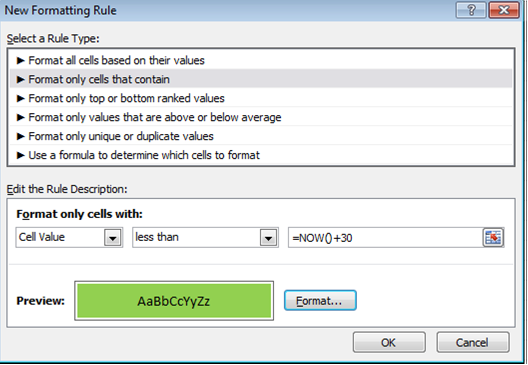
From Excel 2010, there’s a way to automatically highlight upcoming and past due dates. For example, if you have expiry dates for stock in a spreadsheet, it’s possible to highlight the stock that has expired as well as the stock that will expire within 30 days. This is achievable with conditional formatting. Below is a […]
Formatting Your Dates To Show The Period Number
Are you looking for an easy and effective method of displaying the period for a given date? Perhaps you have a sales report and you intend to analyse the dates by periods, then the Custom Format option is the answer. By using a Custom Format, you can show the period of the date (in this […]
How to Use the Excel PMT Function to calculate the monthly repayment on a loan
The Excel PMT Function (payment function) is a really simple to use but highly useful Financial Function used to calculate the repayment amount on a loan. This function assumes that payments are made consistently (repayment frequency and amount remain constant) at a constant interest rate. The video tutorial below will walk you through using the PMT […]
Making Forecasts with the Forecast Function
If you are recording monthly sales amounts and there seems to be a constant upward trend, though the increase each month isn’t the same amount. You can use the FORECAST function to know when a certain sales amount has been hit. Applies To: MS Excel 2007 and 2010 The FORECAST function can work whenever you have a […]
Calculating Multiple Conditions in a Formula With The Nested IF Statement
Do you need to calculate multiple conditions in a formula? Similar to the example below where a specific trade discount percentage has been used depending on the quantity purchased? If that is the case then you can use the Nested IF statement. The Nested IF statement enables one to calculate multiple conditions in a formula. […]
 © Sage South Africa Pty Ltd 2020
.
All Rights Reserved.
© Sage South Africa Pty Ltd 2020
.
All Rights Reserved.